iMovie guide · steps from Apple's iMovie User Guide
How to add subtitles in iMovie on iPhone, iPad and Mac
To add subtitles or captions in iMovie, use titles: text that iMovie places over a clip. On iPhone and iPad, you tap a clip and add a title to it. On Mac, you place a title above the clip and drag its edges to set how long it stays on screen. This guide follows one 8-second clip with a single line from second 2 to second 5.
How to add subtitles in iMovie on iPhone and iPad
- Open your movie project and tap the video clip you want to subtitle in the timeline. The inspector appears at the bottom of the screen.
- Tap the Titles button, then tap a title style. Sample text appears in the viewer above the timeline.
- Tap the sample text in the viewer, tap Edit, and type your line, for example "The entrance is on your right." Then tap Done on the keyboard.
- Drag the text in the viewer to move it, or pinch it to resize it. Scroll back a little and play the clip to check that the line appears with the words and doesn't cover anything important.
How do I show a subtitle for only part of a clip on iPhone or iPad?
Split the clip first. Say the line should appear from second 2 to second 5 of an 8-second clip. Scroll the timeline so the playhead sits at second 2, tap the clip, tap the Actions button, then tap Split. Move the playhead to second 5 and split the second clip the same way.
You now have three clips. Add the title to the middle clip only, so the first 2 seconds and the last 3 seconds stay clear. To keep the text up for that whole clip, tap the More button in the title options and turn on Full Clip Duration. For the next line, split again where the speaker moves on and add a new title to that clip.
How to add subtitles in iMovie on Mac
- Open your movie in the timeline and click Titles above the browser. Skim a title's thumbnail to see how its text moves.
- Drag the title style into the timeline, above the clip where the line should appear. Line up the title's left edge with the moment the speaker starts the line.
- Select the title in the timeline, then double-click the placeholder text in the viewer and type your line. Click the blue checkmark above the viewer to apply the text.
- To change how long the line stays on screen, drag either edge of the title bar in the timeline. To move the whole line earlier or later, drag the title bar itself.
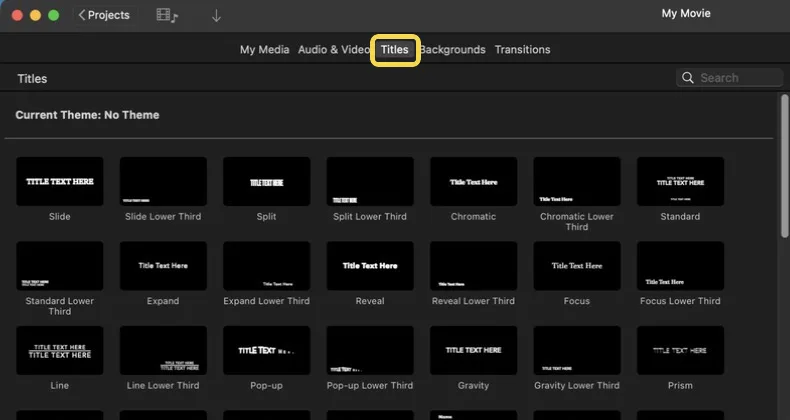
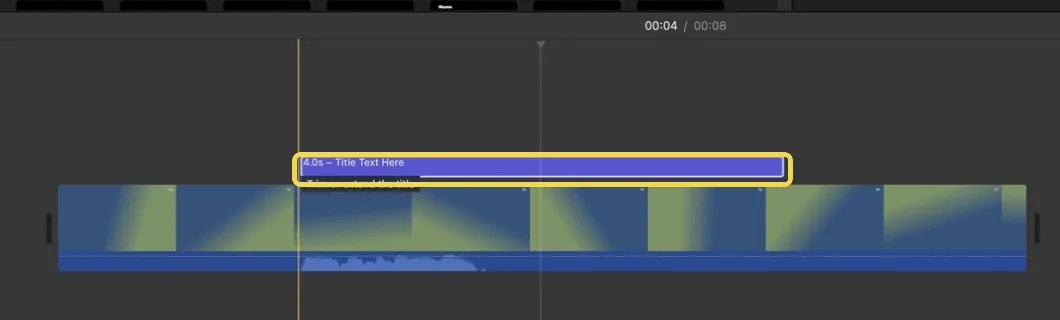
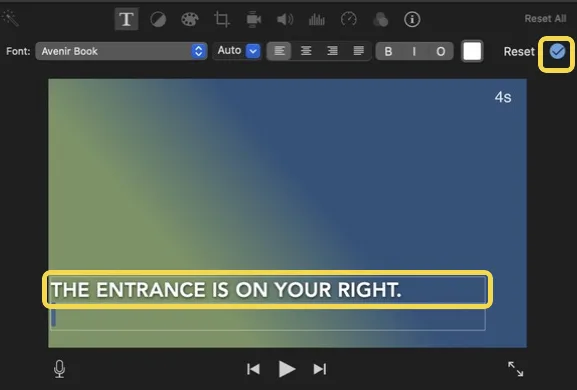
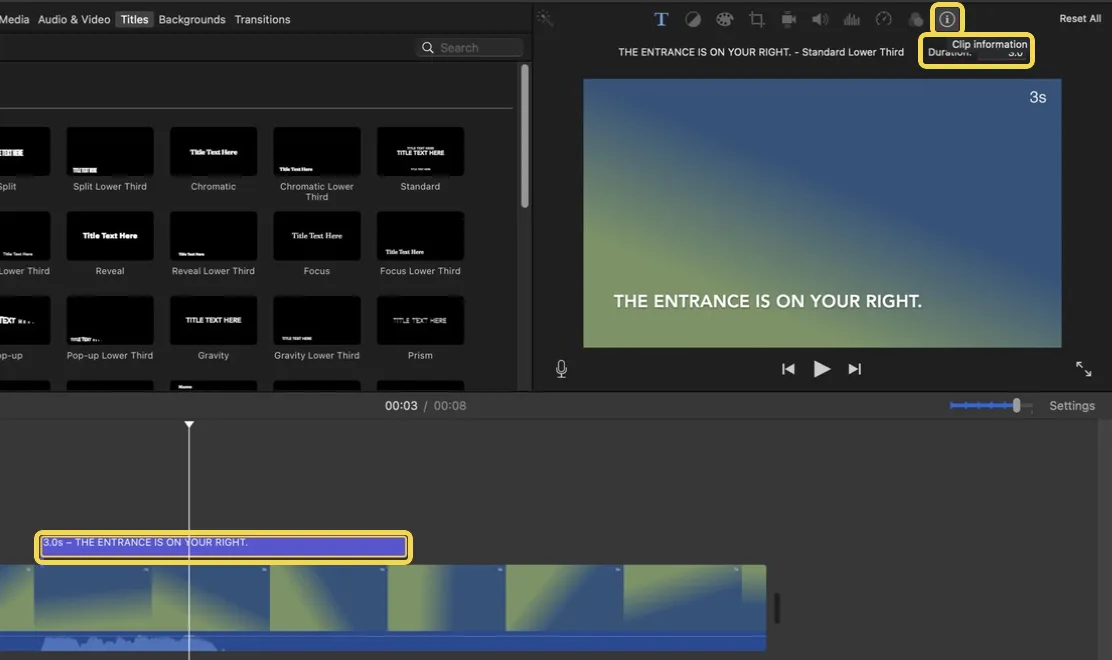
Screenshots from iMovie 10.4.4 on a Mac, November 2026.
For the same 8-second example, place the title bar from second 2 to second 5. A title dropped above the clip starts where you drop it and lasts 4 seconds. If you drop it onto the clip itself instead, iMovie fits it to the first or last third of the clip, or to the whole clip if you drop it in the middle. For an exact length, select the title, click the Clip Information button in the adjustments bar and enter a duration. Then play the lines before and after it to check that each one can be read before the next appears.
Why doesn't my subtitle show, or why does it appear in the wrong scene?
Move the playhead to the moment the line should appear. On iPhone or iPad, a clip with a title shows a T icon in its upper-left corner in the timeline; tap that clip and check the text in the viewer. On Mac, check that the title bar sits above the right clip and crosses the playhead. Check which clip or title is selected before you retype anything.
Can I change the font and position of iMovie subtitles?
Yes, within limits set by the title style. On iPhone and iPad, tap the Font or Color button in the title options, drag the text to move it and pinch to resize it; under Style, Lower Third moves the title toward the bottom of the screen. On Mac, use the font controls above the viewer to change the font, size, color and alignment. Some theme and animated titles don't let you change the font. If a control is unavailable, try another title style with the same line. For vertical video, play it full screen on a phone and check that the text stays clear of the edges.
What if your video has a lot of dialogue?
For a short note or a speaker's name, a title on the clips that need it is quick. For an interview with dozens of lines, typing each one gets slow. Finish the edit in iMovie, export the movie, then open that file in SubtitleGenerator's auto subtitles tool. It drafts timed subtitles from the speech; check names, numbers and line breaks against the picture before you export.


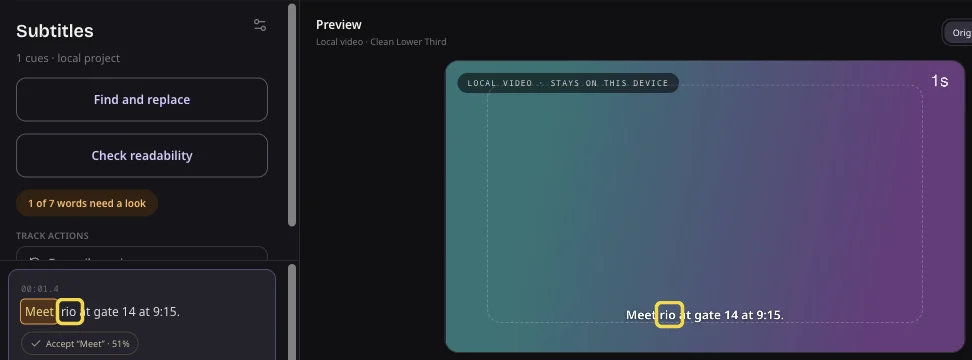
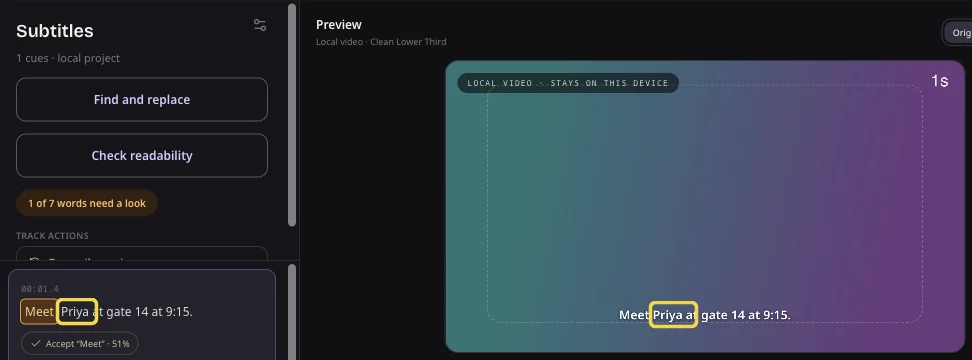
Anything you already added in iMovie, such as a name title, stays in the exported video. Preview those scenes to make sure the new subtitles don't overlap it. On the Free plan, you can burn subtitles into the video at up to 720p with a small watermark. Videos longer than 10 minutes, watermark-free HD exports and subtitle files such as SRT need Pro or Max; compare plans on the pricing page.
Already have an SRT or VTT file for the video? Burn subtitles from that file instead (Pro or Max). Editing in Premiere Pro or DaVinci Resolve? See the Premiere Pro and DaVinci captions workflow.
Sources
The steps on this page follow Apple's iMovie User Guides, checked on November 19, 2026. Button names can change between iMovie versions.