SubtitleGenerator editorial
What is closed captioning?
Closed captioning turns speech and important sounds into synced text viewers can turn on or off. See examples, how it works and how it differs from subtitles and open captions.
Closed captioning is a synchronized text track that viewers can turn on or off in a compatible player. It represents spoken dialogue and the important audio information needed to understand a video, such as who is speaking, music and meaningful sound effects. Unlike open captions, closed captions stay separate from the video pixels, so the viewer controls whether they appear.
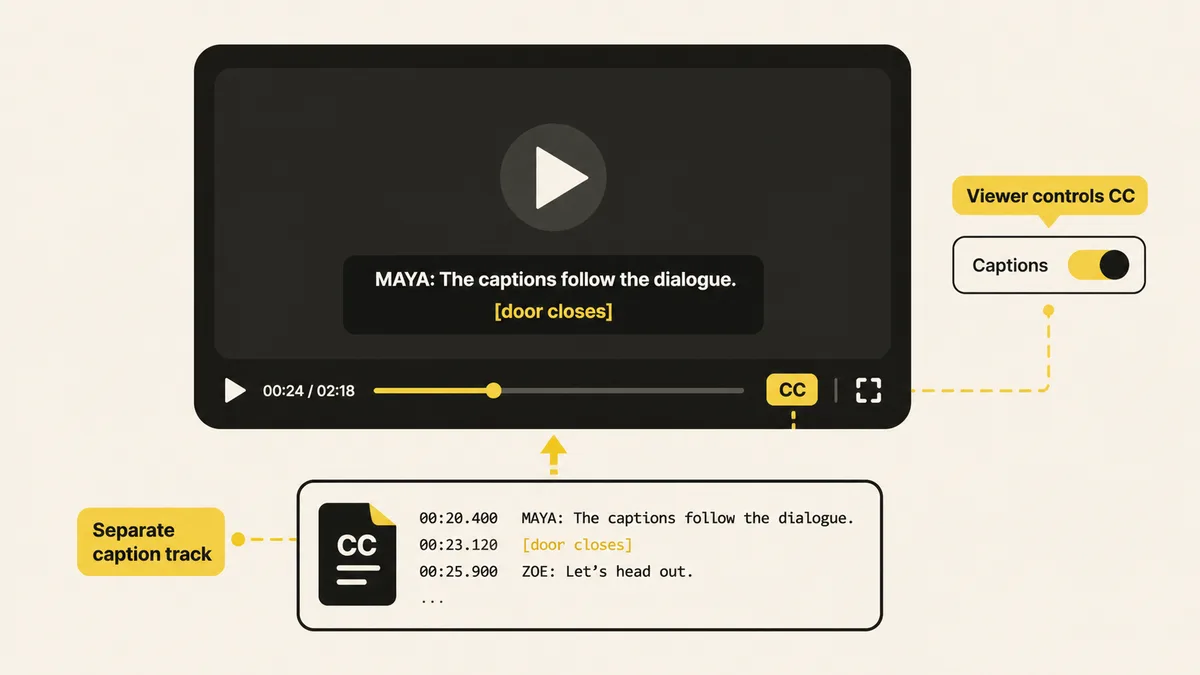
What does closed captioning mean?
The “closed” in closed captioning means the text is hidden until the viewer opens it. A familiar example is the CC button in a video player. Select it and a timed caption track appears; select it again and the track disappears. The video itself has not changed. The player is displaying a separate layer at the right times.
That distinction matters because it gives control to the person watching. A viewer may need captions because they are Deaf or hard of hearing, because the room is noisy, because the audio is quiet, or simply because reading names and technical terms is easier than hearing them once. Other viewers may prefer to watch without text. A closed track supports both choices.
Closed captioning is not a synonym for every piece of text on a video. Text permanently rendered into the picture is an open caption. A dialogue-only translation is usually described as a subtitle. A document that presents the content outside the timeline is a transcript. These formats overlap, but they solve different delivery and audience needs.
The W3C Web Accessibility Initiative overview of captions and subtitles explains captions as the text form of speech and non-speech audio information needed to understand media. That is a better working definition than “words at the bottom of a video,” because useful captions carry meaning, not just raw speech recognition.
What closed captions include
A complete caption track starts with dialogue, but it does not stop there. If an audio detail changes the meaning of the scene, the viewer needs a text equivalent. Depending on the video, that can include:
- the words people say, with spelling, punctuation and numbers checked;
- speaker identification when the speaker is not visually obvious;
- meaningful sound effects such as
[door slams]or[phone vibrating]; - music information when the song or mood affects the scene;
- tone or delivery when it cannot be understood from the picture alone;
- pauses or silence only when they carry narrative meaning.
Imagine an interview that cuts to B-roll while a second person begins speaking. Dialogue alone may be grammatically correct but still confusing. A short speaker label tells the viewer that the voice has changed. In a tutorial, an alert sound may tell the presenter that an export is finished. If the alert is important to the next action, the caption should represent it.
The goal is not to annotate every noise. A fan humming in the background usually adds no meaning. A smoke alarm interrupting a demonstration does. Caption editing therefore combines transcription with judgment: what information would be missing for a person who cannot hear this moment?
The Section 508 captioning guidance recommends synchronized text, appropriate spelling and punctuation, important sounds, readable display time and consistent treatment of speakers, sound effects and music. Those checks are useful for any creator, even when a particular publishing platform uses its own delivery rules.
Closed captions vs open captions, subtitles and transcripts
The shortest way to choose a format is to ask two questions: does the text need to follow the timeline, and should the viewer be able to hide it?
| Format | Timed with the video? | Viewer can turn it off? | What it usually contains | Common use |
|---|---|---|---|---|
| Closed captions | Yes | Yes | Dialogue, speakers and meaningful sounds | YouTube, courses and accessible players |
| Open captions | Yes | No | Caption or subtitle text rendered into the picture | Short-form feeds and fixed visual styling |
| Subtitles | Usually | Usually, when delivered as a track | Dialogue, often translated | Multilingual viewing |
| Transcript | No frame-by-frame display | Not applicable | A readable document of spoken and relevant audio content | Reference, search and audio alternatives |
Open and closed describe delivery. Captions and subtitles describe content and audience. A creator can prepare an English closed-caption track for accessibility, translate the dialogue into a Spanish subtitle track, and also render a short promotional clip with open captions. They are related outputs, not interchangeable labels.
For the detailed trade-offs by platform, editing cost and viewer control, use the dedicated closed captions vs open captions comparison. Keeping that comparison on its own page avoids turning a basic definition into a maze of edge cases.
How closed captions work
A closed-caption workflow has three parts: timed cues, a delivery file or track, and a player that understands it. Each cue stores a start time, an end time and text. A small SRT example looks like this:
1
00:00:01,200 --> 00:00:03,800
MAYA: The first draft is ready.

2
00:00:04,100 --> 00:00:06,300
[notification chimes]
When playback reaches 1.2 seconds, the player displays the first cue. At 3.8 seconds it removes it. The next cue appears at 4.1 seconds. WebVTT follows the same basic idea with a different timestamp syntax and optional web-oriented features.
An SRT or VTT file does not style every platform in the same way. The player owns much of the final font, size, color and placement. That limitation is also a benefit: viewers and platforms can adapt closed captions to their needs, and an editor can correct a typo without rendering the video again.
The usual publishing flow is to upload a video, generate or write a timed draft, review it, export a supported subtitle file, and attach that file in the platform's caption controls. The platform may process or convert it before playback. Always preview the published result: a technically valid file can still contain crowded lines, late timing or names that were transcribed incorrectly.
SubtitleGenerator currently exports SRT, VTT and other subtitle files for Pro and Max plans. Free users can generate and edit the same timed draft, then export a 720p video with a small watermark. The product does not present every broadcast or platform format as an available export; the export panel is the current capability truth.
Prerecorded vs live captions
Prerecorded captions can be edited before the audience sees them. A creator can replay unclear audio, check names against source material, shorten crowded lines, align cue boundaries and preview the result. This review window is why an automatic transcript should be treated as a draft rather than a finished caption track.
Live captions are created while the event is happening. There is little or no opportunity to stop and correct a phrase before it appears. The workflow therefore depends on a live captioner or a real-time system, monitoring and a plan for errors or delay. Speed matters, but the text still needs to represent the audio information people need.
The W3C explanation of WCAG 2.2 Captions (Live) describes captions for live audio in synchronized media and notes that captions carry more than dialogue, including speaker identification and significant sound information. The success criterion is about live synchronized media; it should not be used to pretend a prerecorded auto-caption draft has already been reviewed.
For most individual creators, the practical split is simple: review prerecorded captions before publishing, and choose a dedicated live-caption workflow for streams, webinars or events. Requirements differ by organization, location and publishing context, so check the rules that apply to the actual project rather than treating general information as a certification.
What makes captions readable
Accuracy is necessary, but readability also depends on timing and presentation. Use this review pass before you publish:
- Check names, numbers and specialist words. These are common speech-recognition failure points and often carry the most meaning.
- Match the audio. A cue should appear when the corresponding speech or sound begins and leave when that moment ends. Persistent lag makes viewers split attention between the picture and stale text.
- Give people time to read. Avoid flashing a long sentence for a fraction of a second. Split at natural phrase boundaries rather than arbitrary character counts.
- Keep the picture understandable. Captions should not cover a speaker label, chart value, sign or other essential on-screen text. Move or shorten the cue when the delivery system allows it.
- Identify speakers consistently. Use a stable name or label when the picture does not make the speaker clear.
- Include meaningful audio. Add concise sound and music cues when they change what the viewer understands.
- Watch the result at normal speed. Reading a cue list in isolation does not reveal late timing, collisions with graphics or exhausting line changes.
Automatic captions save time by producing timestamps and a first draft. They do not remove this review. Quiet speech, accents, overlapping voices, proper nouns and background noise can all create plausible-looking mistakes. A confidence flag helps prioritize uncertain words, but the creator remains the person who knows the subject and intended meaning.
Readable captions also avoid over-design. For a separate closed track, let viewers or the player control presentation where possible. For open captions, choose contrast, size and placement that survive the target canvas. The underlying corrected text and timing can serve both outputs.
How to create closed captions
You can create a useful track without building a second edit from scratch:
- Start with the video. Open the SubtitleGenerator homepage and choose a local MP4, MOV, WebM or MKV file. The original video stays in the browser; only extracted audio needed for transcription is processed.
- Generate the timed draft. Speech recognition creates editable cues with word-level timing and flags uncertain words for review.
- Correct the meaning. Check names, numbers, punctuation, speaker changes and important sounds. Adjust cue boundaries and line breaks while watching the real preview.
- Preview the reading experience. Play the video at normal speed, inspect key graphics and make sure captions do not arrive too early or linger too long.
- Choose the output. Pro and Max users can download a subtitle file such as SRT or VTT for a compatible player. Free export produces a 720p video with a small watermark, which is an open-caption result rather than a switchable track.
- Test on the destination. Upload the file, enable the CC control and watch representative moments on the actual platform before publishing.
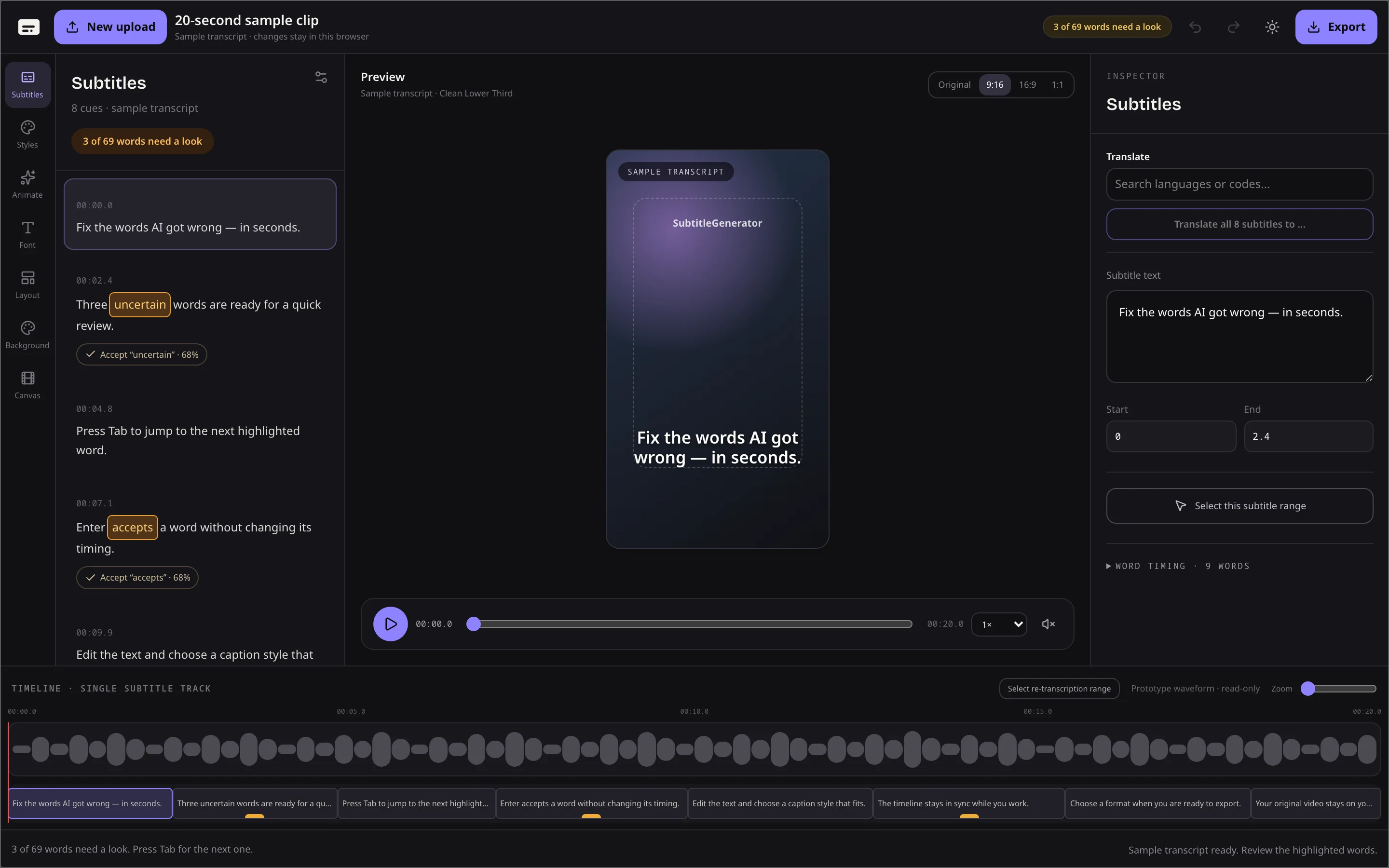
The screenshot above is the current product editor, not a stock interface. You can open the 20-second sample to inspect the same cue list and editing controls without uploading a file or using subtitle time. The sample is for trying the correction and styling workflow; because it has no source video file, it is not an export shortcut.
The durable workflow is “generate once, correct once, deliver by surface.” Keep the reviewed timed text as the source, export a closed track where viewers need a CC control, and render an open-caption version only where fixed styling or muted autoplay makes it the better choice.
Frequently asked questions
What does closed captioning mean?
Closed captioning is a synchronized text track that viewers can turn on or off. It includes dialogue plus important speaker and sound information needed to understand the video.
What is an example of closed captioning?
A YouTube video with a CC button and an uploaded SRT or VTT track is a common example. The viewer chooses whether the text appears, unlike captions burned into the picture.
What is the difference between closed captions and subtitles?
Closed captions represent dialogue and meaningful non-speech audio for viewers who may not hear the soundtrack. Subtitles usually represent or translate dialogue for viewers who can hear it.
Can closed captions be turned off?
Yes. Closed captions are separate from the video pixels, so a compatible player lets the viewer show or hide them. Open captions cannot be turned off.
Are automatic closed captions accurate enough to publish?
Automatic captions are a draft. Names, numbers, quiet speech, speaker labels, sound cues and timing should be reviewed before publication.
Can SubtitleGenerator create a closed-caption file?
You can generate and edit the timed draft for free. Downloading subtitle files such as SRT or VTT is a Pro or Max capability; Free export is a 720p video with a small watermark.
See a caption draft in the editor
Open the built-in 20-second sample to inspect timing, correct uncertain words and preview caption styles. It does not upload a file or use subtitle time.
Open the 20-second sample