Auto subtitles
Auto Subtitles for Video
Create and review a timed subtitle track for your video. Fix text and timing, then choose a styled MP4 or a separate subtitle file.
Free to start, no signup required. Free video exports are up to 720p with a small watermark; subtitle files and watermark-free HD exports require Pro or Max.
Your original video stays on this device. Only the extracted audio needed to generate subtitles is processed.
See Auto Subtitles Before You Export
A generated subtitle draft is most useful when it is easy to check. SubtitleGenerator keeps the words, timing, review flags, styles and export choices in one editor, so you can correct the result before it reaches your audience.
Real SubtitleGenerator workflow
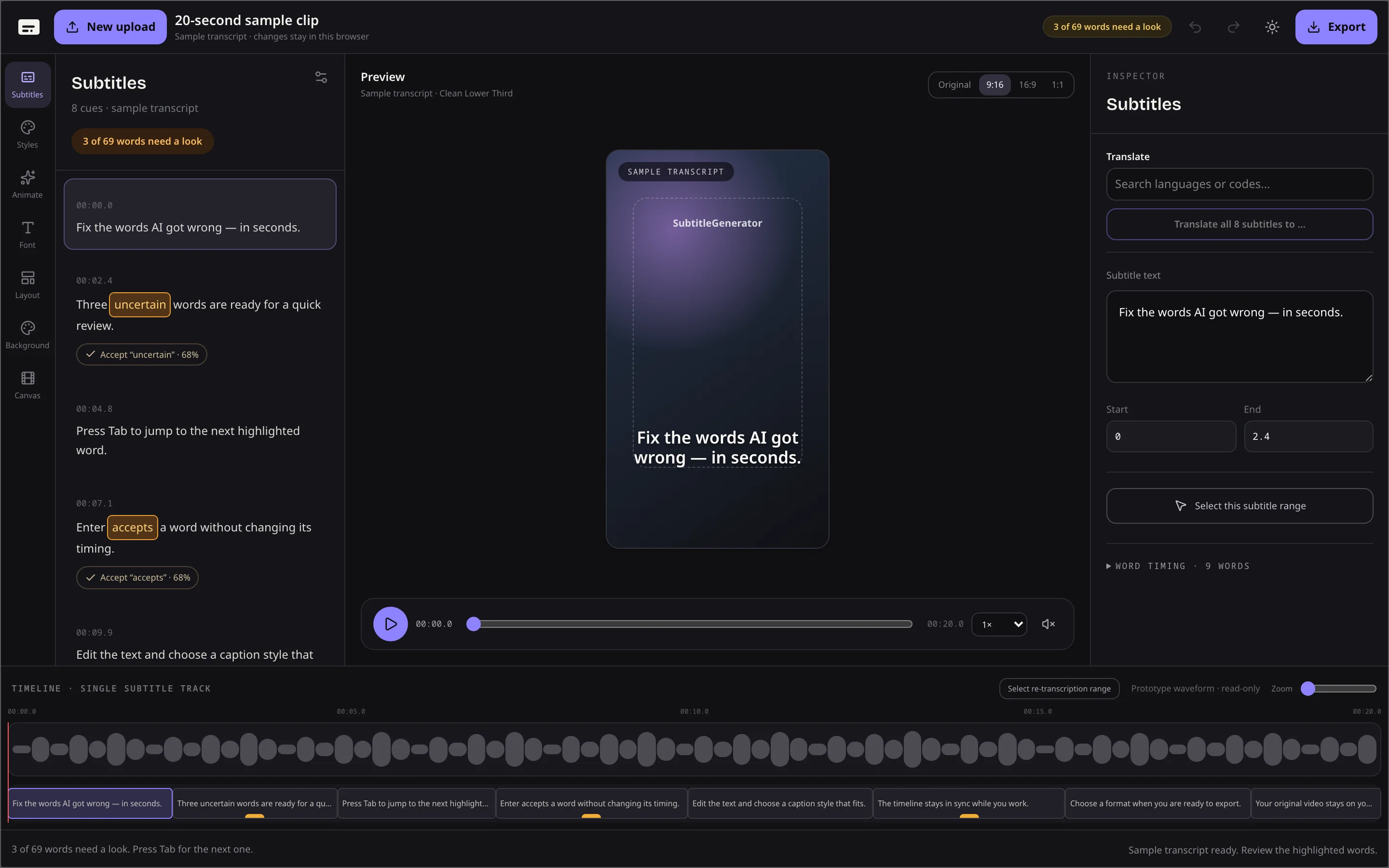
Review uncertain words before publishing
Words that may need attention appear in the review queue. Open a subtitle, listen to the matching audio and correct the wording without searching the whole transcript. “All clear” means no review flags remain; watch the final video before publishing.
Fix subtitle text and timing in the same editor
Edit the text, adjust start and end times, add a missing subtitle in an empty gap and preview the change on the video. Your chosen style stays in place while you correct the words.
Choose the export your next step needs
Export a captioned MP4 when the subtitles should stay visible everywhere the video plays. Choose a subtitle file with Pro or Max when YouTube, a video editor or another player needs a separate caption track.
How to Generate Subtitles Automatically
The same tool handles the complete workflow on this page.
Step 1 — Choose a supported video
Choose an MP4, MOV, WebM or MKV file from this device. Your original video stays in your browser while SubtitleGenerator checks its length and file size against your plan limits.
Step 2 — Generate a timed subtitle draft
Start generating subtitles and watch the progress on screen. The tool turns speech into timed subtitles that you can check and edit before export.
Step 3 — Review and edit the words
Play the relevant moment, check flagged words, correct names or phrases and adjust when a subtitle appears or disappears. You can select one short passage and generate its subtitles again without replacing the rest of your work; sign in free for a longer range.
Step 4 — Style and export the result
Choose a built-in style, preview the subtitles on your video, choose an export option and download the result without leaving this page.
Why Every Generated Subtitle Draft Needs Review
A generated subtitle draft saves you from typing every line from scratch. Names, jargon, overlapping voices or phrases that sound different in context may still need correction, so review the words and timing before you publish.
Use review flags as a checklist
Review flags show you which words may need attention. They tell you where to listen first, but they do not replace watching the finished section.
Correct one difficult passage without starting over
Select a short passage and transcribe it again. The rest of your subtitles, including the lines you already fixed, stay in place. Sign in free when you need a longer range.
Edit, Style and Export Auto Subtitles
Keep words, timing and style in one editor
Keep the words, timing, font, color, background, position and motion in one editor. Move between review and design without exporting an intermediate file or opening another product.
Choose a captioned video or a subtitle file
| Compare | Captioned video | Subtitle file |
|---|---|---|
| Best for | Keeping the words and visual style visible everywhere the video plays. | Uploading a separate caption track to a platform, player or editor. |
| Keeps styling? | Yes. The captions are burned into the exported MP4. | Partly. ASS and SSA can carry settings such as font name, color, outline and position, but players may not reproduce every detail or word-by-word animation. |
| Free plan | Up to 720p with a small watermark. | Not included. |
| Pro or Max | Watermark-free HD video. | Eight formats: SRT, VTT, ASS, SSA, SBV, SMI, TXT and JSON. |
Need complete text to read, edit or copy? Turn video into text with TimedSubs.
Choose a Workflow for Where You Publish
YouTube videos and Shorts
Choose whether viewers need a separate subtitle track or whether the captions should stay visible in a Short.
Add captions to YouTube videos
TikTok videos
Review the wording and safe placement before exporting a vertical video with captions burned in.
Premiere Pro and DaVinci Resolve
Use a subtitle file when the final edit belongs in a desktop timeline, then style or position the track in that editor.
Start Free, With Export Limits Up Front
Generating and editing are free. Without an account, you can try one video up to 10 minutes. A Free account includes 60 minutes of subtitle time each month. Free video exports are up to 720p with a small watermark. Pro and Max unlock subtitle files and watermark-free HD video. PAYG only adds subtitle time; it does not unlock subtitle files, HD or watermark removal.
Frequently Asked Questions
What are auto subtitles?
Automatic subtitles are timed text generated from speech in a video. They give you an editable first draft, but names, specialized terms and timing may still need review before you publish or export.
How do I generate subtitles from my video?
Choose a supported video above, start generating subtitles, review the timed draft and correct any words or timing. You can then style the result and export a captioned video, or use Pro or Max to download a subtitle file.
Can I edit generated subtitles before exporting?
Yes. You can edit the words, start and end times and visual style before export, and add a subtitle in an empty gap when one is missing. You can also select one short passage and transcribe it again without changing the rest of your subtitles.
How accurate is the generated draft?
Accuracy varies with the recording, speakers and language. Review flags point you to words that may need attention, and you can edit the text and timing yourself. You can select one passage and generate its subtitles again if it needs another pass.
Can I generate subtitles online without installing software?
Yes. The workflow runs in your browser. Your original video stays on your device; only the extracted audio needed to generate subtitles is processed.
What video formats can I use?
You can start with MP4, MOV, WebM or MKV. SubtitleGenerator checks the video's length and file size against your plan limits before it starts generating subtitles.
Can I start free, and will the export have a watermark?
Yes, you can generate and edit for free. Free video exports are up to 720p and include a small watermark. Pro and Max add subtitle files and watermark-free HD video. PAYG only adds time; it does not unlock subtitle files, HD or watermark removal.
What if I need a full transcript instead?
Use TimedSubs video to text when you need complete text to read, edit or copy without video styling. This page is for a timed subtitle track that stays editable with the video.
Finish Your Timed Subtitle Track
Choose a video above and leave this page with subtitles you have reviewed, not an unedited draft.
Choose a videoFree to start, no signup required. Your original video stays on this device.
Need another language? Review the source, then translate the full subtitle track with Pro or Max.