YouTube subtitle font
Pick a YouTube subtitle font every viewer will see
When you upload an SRT file or use YouTube's automatic captions, YouTube's player draws the words, and each viewer can change the font, size and colors in their caption settings. To make sure everyone sees the font you picked, burn the subtitles into the video before you upload it.
Comparing fonts here is free and needs no sign-in. Free exports are 720p with a small watermark; Pro and Max export HD without one.
Preview a font for your YouTube video
Type a line from your video, compare two fonts on a bright or dark scene, and check the smallest size as well as the largest. When one reads clearly, choose Use this font to open it in the editor.
Preview with our sample. Choose your own video in the editor when you're ready.
Who controls the font in YouTube captions
It depends on how the words get onto the screen.
| How the captions are added | Font | Can viewers turn them off? |
|---|---|---|
| YouTube's automatic captions | Shown in YouTube's caption style. Each viewer can change it. | Yes |
| A caption file you upload, such as SRT or VTT | Same as automatic captions. SRT carries no styling, and VTT styling stops at bold, italic and underline. | Yes |
| Subtitles burned into the video | The font you exported, the same for every viewer. | No |
YouTube also accepts TTML files and lists them as supporting styling and positioning, but its help pages don't say which fonts a TTML file can set or how that works with a viewer's own settings. SubtitleGenerator doesn't export TTML.
What viewers can change in YouTube caption settings
On a computer, viewers open Settings, then Subtitles/CC, then Options. YouTube lists font, color, opacity and size; background color and opacity; window color and opacity; and character edge style. Their choice stays as the default until they change it or select Reset.
In the Android app, Size and style in the caption settings opens the device's own settings. On iPhone and iPad, viewers can start from the same app setting or go to Accessibility, then Subtitles & Captioning in the Settings app. On TVs and game consoles, Caption style lets them change the font, background and window.
These settings help viewers who need larger or higher-contrast text. They also mean an uploaded caption track can look different on every screen, so don't plan a design around how captions look on yours.
Burn in the font or upload a caption file?
Burn the subtitles in when the font is part of the look: a bold style for Shorts, your brand font, or words that highlight and move. Every viewer sees the same lettering on every device, and nobody can switch it off.
Upload a caption file when viewers should control the captions: turning them off, making them bigger or picking a high-contrast style in their settings. The words stay separate from the picture, so changing them doesn't mean exporting the video again.
If you burn subtitles in and also upload a caption file with the same words, viewers who turn captions on will see the text twice.
SubtitleGenerator can do either from the same project: export the video with the subtitles burned in, or download an SRT or VTT file with Pro or Max.
Long videos and Shorts
A long horizontal video asks viewers to read for minutes, so an even, quiet font such as Inter or Noto Sans is a safe place to start. A Short plays on a small vertical screen, where heavier fonts such as Anton or Bebas Neue stay legible at large sizes but crowd long sentences. Check your pick on a phone and leave enough time to read each line.
In the editor, set the canvas to 16:9 for a regular video or 9:16 for a Short before you style the captions. Then play the export on the kind of screen your viewers use and check that nothing covers the words.
The same line, burned in at YouTube sizes
Frames taken from two videos exported with SubtitleGenerator: Inter on a 16:9 video and Anton on a 9:16 Short, with the same sentence, size setting and outline. Each frame comes from the exported MP4, not from the editor preview.
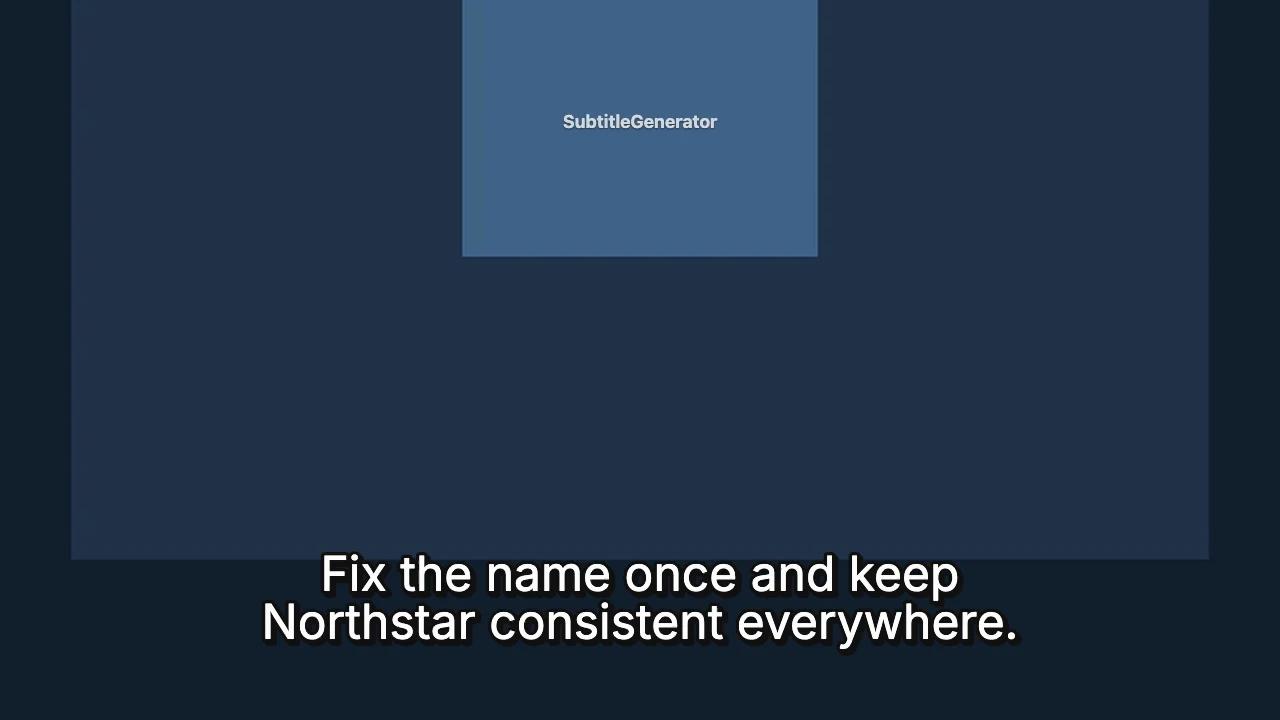
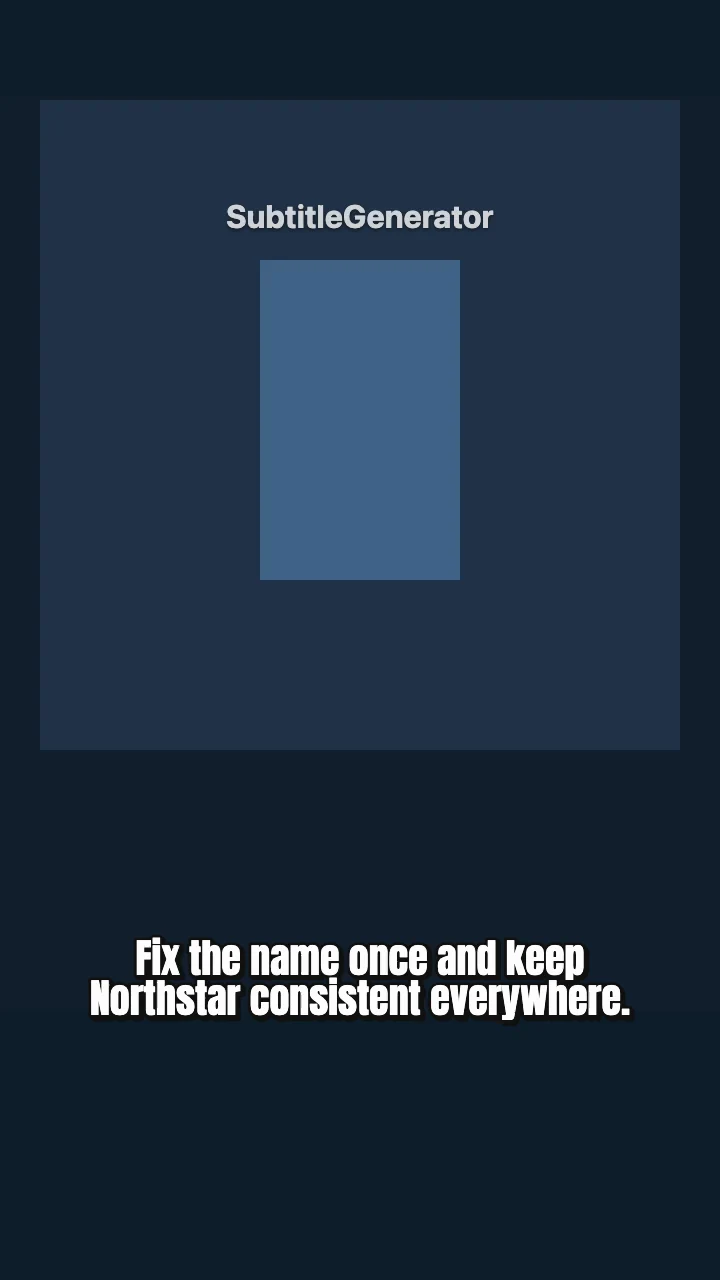
Exported on November 22, 2026 at 1280 × 720 and 720 × 1280, with the Free watermark. Frames are shown smaller than the video, so check your own export at full size too.
Burn your font into a YouTube video
- Pick a font above and choose Use this font. If you already have a project open, review the change before applying it.
- Choose your video. SubtitleGenerator turns the speech into subtitles; check names, numbers and line breaks in the full preview.
- Export the video with the subtitles burned in, then upload that file to YouTube as usual.
Free exports are 720p with a small watermark. Pro and Max export HD without a watermark. Previewing a font doesn't start transcription; that begins only when you choose a video in the editor.
Use your own brand font
With Pro or Max you can upload a font file in the editor: .ttf, .otf, .woff or .woff2, up to 2 MB. The font stays in this browser on your device and is used when the video is exported. If the font is missing a character in your subtitles, the editor tells you before you export. Only upload fonts whose license lets you use them in videos.
YouTube subtitle font questions
What font does YouTube use for subtitles?
YouTube's help pages don't name the default caption font. Viewers can change it under Subtitles/CC, then Options, so the same captions can look different from one viewer to the next.
Can I set the font of automatic captions for every viewer?
YouTube's help pages describe reviewing and editing the words of automatic captions in YouTube Studio, not choosing their font. To control the font, generate your own subtitles, style them and burn them into the video.
Does an SRT file keep my font on YouTube?
No. YouTube doesn't recognize style information in SRT files, and its VTT styling stops at bold, italic and underline. The SRT and VTT files you download from SubtitleGenerator contain the words and timing, not the font.
Which font is best for YouTube subtitles?
There isn't one best font. A clear, evenly spaced font suits long videos, and a heavier one suits short, fast Shorts. Check your pick on your own footage at phone size, or compare more options on the subtitle fonts page.
Can viewers turn off burned-in subtitles?
No. Burned-in subtitles are part of the video picture, so caption settings can't hide or restyle them. Keep your original file in case you want a version without subtitles.
Is it free to try a font?
Yes. You can compare fonts on this page without signing in, and the built-in fonts are available on every plan. Free exports are 720p with a small watermark; uploading your own font needs Pro or Max.
Keep going
Comparing fonts for any platform? See all subtitle fonts. Adding captions in YouTube Studio? Read the YouTube captions guide. Checking line length and reading speed? Use the subtitle guidelines. Want highlighting or motion as well? Browse caption styles.
Sources: YouTube Help on caption settings, supported caption files, automatic captions and captions on TV. Read on November 22, 2026.
Ready to try it on your video? Use this font