SubtitleGenerator editorial
How big should YouTube subtitles be on a phone?
Caption files on YouTube are sized by each viewer. Burned-in subtitles are sized by you, as a share of the video's height, and long subtitles can quietly shrink to fit. What our test showed and how to check your own export.
Disclosure: I build SubtitleGenerator, the subtitle editor used in the tests below. I used AI to help draft and fact-check this post against our code and test records. The numbers come from our own test runs: on October 24 and November 22, 2026 with a synthetic test clip, and on October 13 with a stock cooking clip and a typed sample sentence. None of this is a reading study or a test on a physical phone.
Short answer: it depends on who draws the words.
- Caption file or automatic captions: you don't pick the size. Each viewer does, in YouTube's caption settings. Your job is clean words and good timing.
- Burned-in subtitles: you pick the size, and the useful unit is a share of the video's height, not points. SubtitleGenerator's built-in styles start between 3.8% and 8% of the height; our YouTube Shorts starting style uses 7.5%.
- The trap: the size you set is a request. A subtitle that's too long gets shrunk or wrapped. In our test on a vertical video, five of seven subtitles shrank below 75% of the chosen size, the smallest to 53%. Splitting and merging cleared the warnings; a bigger size setting would not have.
- A working limit: two lines per subtitle, about 42 characters per line and no faster than about 20 characters per second (spaces not counted, for Latin-script text), and at least one second on screen.
Who controls subtitle size on YouTube
| How the words get on screen | Who sets the size | Can viewers change it in caption settings? |
|---|---|---|
| YouTube's automatic captions | The viewer | Yes |
| An SRT or VTT file you upload | The viewer | Yes |
| Subtitles burned into the video | You, when you export | No |
YouTube's caption settings let viewers change the font, color, opacity and size, plus the background and window behind the text. That is good for viewers who need bigger or higher-contrast text, and it means you can't design around how an uploaded track looks on your own phone.
If you burn the subtitles in, they are part of the picture. Every viewer gets the size you exported, relative to the video, and caption settings can't change it. That is why the size choice matters more for burned-in subtitles, and why the rest of this post is about them. The YouTube subtitle font page goes through the same split for fonts.
Why "how many pixels?" is the wrong question
SubtitleGenerator sizes burned-in text as a share of the video's height. When you start from our YouTube entry points, a regular video starts with the Clean Lower Third style at 4.2% of the height, and a Short starts with the Hype style at 7.5%. On a 1280-pixel-tall Short, 7.5% is 96 pixels; on a 720-pixel-tall horizontal video, 4.2% is about 30.
What the viewer sees depends on how big the video is on their screen. Here are three of our styles' starting sizes (Clean Lower Third, Creator Outline and Hype) on a phone that is 390 points wide. This is geometry, not a measurement of the YouTube app or of the rendered letters, and it assumes the video fills the width (or, rotated, the height) of the screen:
| How the video is watched | Video height on screen | At 4.2% | At 6.6% | At 7.5% |
|---|---|---|---|---|
| 16:9 video, phone held upright | about 219 pt | about 9 pt | about 14 pt | about 16 pt |
| 16:9 video, phone rotated to full screen | about 390 pt | about 16 pt | about 26 pt | about 29 pt |
| 9:16 Short filling the screen width | about 693 pt | about 29 pt | about 46 pt | about 52 pt |
The same setting covers roughly a threefold range across these three cases. A horizontal video watched upright gets the smallest subtitles, so if your viewers tend to watch that way, start above a TV-style lower third and check it on a phone. A Short gets more height but less width, so long subtitles run out of room sideways. That is the case the next test is about.
The size you set isn't always the size you get
On October 24 we tested this on a 30-second vertical clip (720 × 1280) with a synthetic voice and seven subtitles from a saved speech-recognition draft. The style was our default, Clean Lower Third (4.2% of the frame height), with the font switched to Montserrat, at most two lines and six words per line.
Our readability check measures each subtitle with the same layout code the export uses. It flagged 6 of the 7. Five of them could only fit in two lines by shrinking below 75% of the chosen size:
| Subtitle | Fits at |
|---|---|
| "Northstar helps our team publish clear videos every week." | 59% |
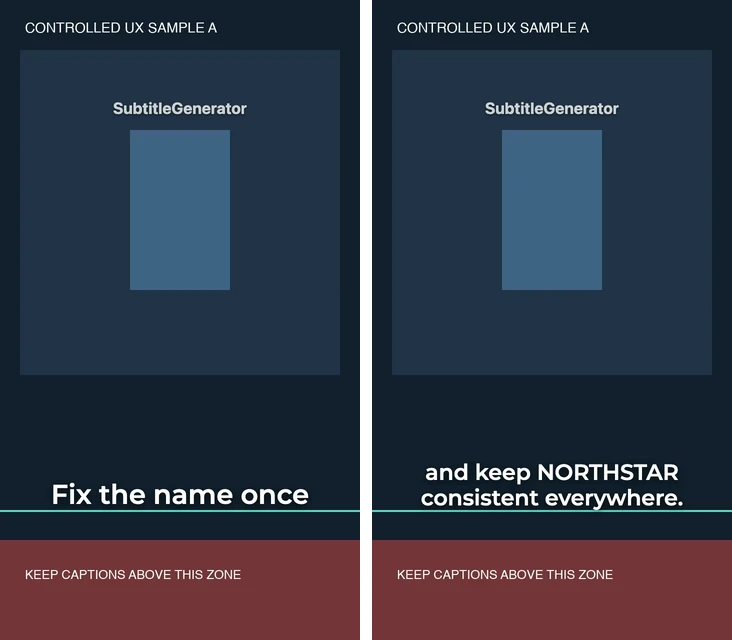
| "Fix the name once and keep Northstar consistent everywhere." | 53% |
| "Long subtitles should stay readable without covering the speaker." | 53% |
| "Export this video with the same layout you just" | 73% |
| "Then use this style again for the next video." | 73% |
The sixth flag was "previewed.", a fragment on screen for 0.72 seconds.
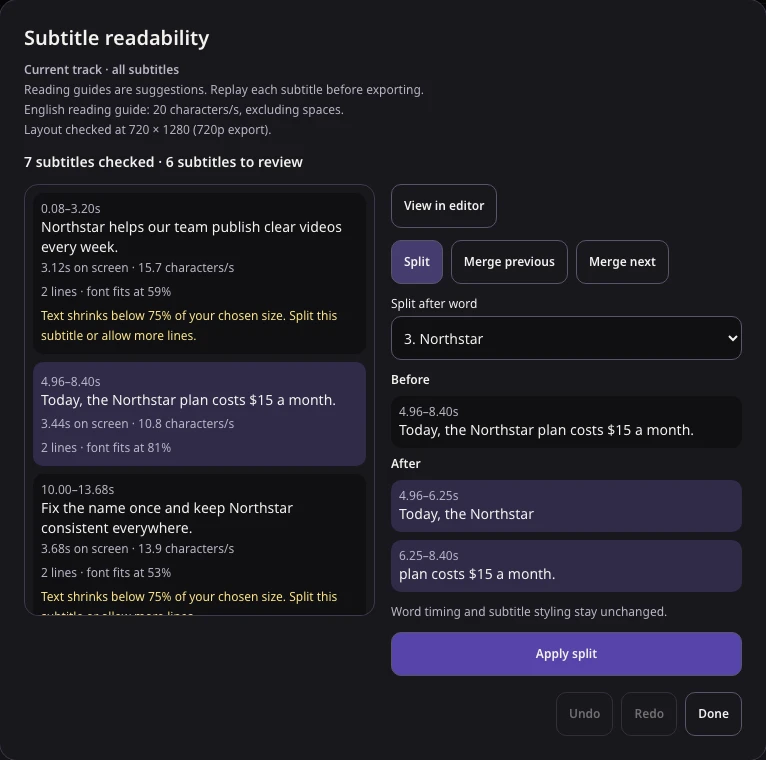
In pixels of the exported file, 4.2% of 1280 is about 54 pixels; 53% of that is about 28. On the phone in the table above, with the Short filling the screen width, that is roughly 29-point text next to 15-point text, inside one video.
The fix was not a bigger size setting. It was shorter subtitles. Splitting at existing word timings, and merging the 0.72-second fragment back into its sentence before splitting it again, gave 12 subtitles and no warnings:
- every subtitle fit at 81–100% of the chosen size, in one or two lines;
- the fastest ran at about 17.1 characters per second, spaces not counted;
- the shortest stayed on screen for 1.16 seconds.
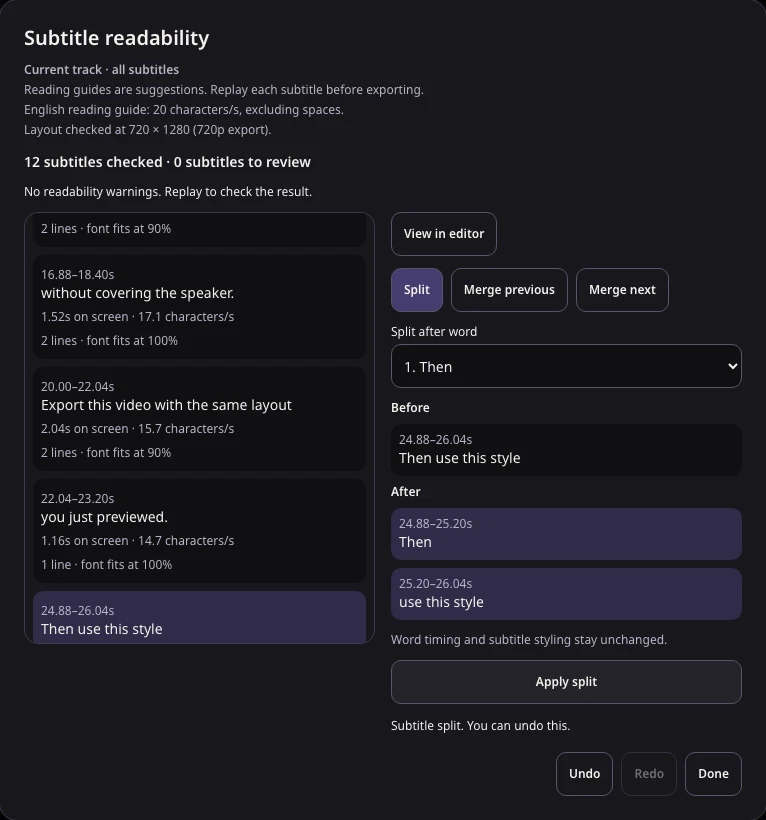
No warnings is not the same as readable. The check doesn't judge where a sentence breaks, whether the words are right, or what a platform's buttons cover. It caught the layout and timing problems in this clip.
Font choice moves this too. In the October 13 test, the same English sentence at the same size (our Creator Outline setting, 6.6% of the height) wrapped to three lines in Inter, four in Montserrat and five in Noto Sans Mono, on a 720 × 1280 frame. The subtitle fonts page shows all 16 fonts from that test side by side.
How to size burned-in subtitles for phone viewers
- Decide whether to burn in at all. If viewers should be able to resize or turn off the captions, upload a caption file instead, and focus on wording and timing.
- Start from a style, not a number. Pick a style made for your format and keep its size as the starting point. In SubtitleGenerator, the Size slider under Fine-tune then scales it from 50% to 200%.
- Keep each subtitle to two lines. Our check flags more than two lines, and lines over 42 characters (spaces not counted). Netflix's English timed-text style guide also sets 42 characters per line.
- Check the reading pace. For Latin-script text, we flag more than 20 characters per second (spaces not counted), and in any language, anything under one second on screen. The Netflix guide gives up to 20 characters per second for adult programs.
- Look for shrunk subtitles. If your editor fits long text into a fixed number of lines, compare each subtitle's size with the rest. We flag any subtitle that shrinks below 75% of the chosen size. Split it rather than accepting smaller text.
- Watch the export on a phone. Hold the phone upright for horizontal videos, and play Shorts at full screen. Check that nothing on screen covers the words.
These limits are guides, not proof that every viewer can read every line. In this clip, they turned five shrunken subtitles and one flash-length fragment into a short list of fixes.
In SubtitleGenerator
Check readability in the editor runs these checks over the whole subtitle track at the 720p export size and shows each subtitle's time on screen, characters per second, line count and the share of your chosen size it fits at. Split or merge restructures subtitles at their existing word timings, with undo, when those timings can be mapped safely. It works on the original transcript, not on imported or translated subtitle tracks. Both are available on the Free plan. To compare fonts at phone size before you start, use the YouTube subtitle font page.
Frequently asked questions
What font size should YouTube subtitles be?
For a caption file (SRT, VTT or YouTube's automatic captions), you don't choose: each viewer sets the size in YouTube's caption settings. For subtitles burned into the video, think in percent of the video's height rather than points. SubtitleGenerator's built-in styles start between 3.8% and 8% of the height. Whatever you start with, keep each subtitle to two lines, check that none was shrunk to fit, and watch the export on a phone.
Can I make YouTube captions bigger for all viewers?
Not with an uploaded caption file. YouTube's caption settings let each viewer change the font, color, opacity and size, so the same track can look different on every screen. If you burn the subtitles into the video, their size relative to the picture is fixed, and caption settings can't change it.
Why do some of my subtitles look smaller than others?
One possible reason is that the subtitle is too long for its layout. When a subtitle has to fit inside a set number of lines, an editor can shrink the text for that one subtitle. In our test, five of seven subtitles shrank below 75% of the chosen size, the smallest to 53%. After splitting and merging, every subtitle fit at 81–100%.
Put the workflow on a video
Inspect a local file or open the built-in sample to preview caption styles and export formats. Your video stays on your device.
Upload your video